Hearit.AI BLE OTA Firmware Update Guide
This guide explains how to update your Hearit.AI device firmware using the Web OTA tool.
Supported Devices
The BLE OTA update method is available for the following Hearit.AI devices:
| Category | Supported Models |
|---|---|
| ChatMic Series | HA-MIC01B, HA-MIC01C, HA-MIC05 |
| TWS Earbuds | HA-TWS01, HA-TWS01B, HA-OWS01, HA-OWS02, HA-OWS03, HA-ANC01 |
| Smart Speakers | HA-SPK01, HA-SPK02, HA-SPK03, HA-SPK05 |
| Smart Glasses | HA-GLS01, HA-GLS02 |
| Smart Pen | HA-PEN01 |
| Other Devices | HA-BC01, HA-ONE01, HA-PBANK01 |
Note: If your device is not listed above, please refer to the specific firmware update guide for your device model.
System Requirements
Supported Browsers
| Browser | Support |
|---|---|
| Chrome (Desktop/Android) | ✅ Supported |
| Edge (Desktop/Android) | ✅ Supported |
| Opera (Desktop/Android) | ✅ Supported |
| Firefox | ❌ Not Supported |
| Safari / iOS Browsers | ❌ Not Supported |
Note: Web Bluetooth API is required. Please use Chrome, Edge, or Opera browser.
Update Steps
Step 1: Open the OTA Tool
Visit: https://hearit.ai/ota/
Step 2: Connect Your Device
- Make sure your Hearit.AI device is powered on
- Click the "Connect" button
- A browser popup will appear listing nearby Bluetooth devices
- Select your device (e.g., "HA-MIC01C L0610") and click "Pair"
Step 3: Select Firmware File
- Click the firmware selection area
- Choose the
.ufwor.binfirmware file provided by Hearit.AI - The file name and size will be displayed after selection
Step 4: Start Update
- Click the "Start Update" button
- Wait for the update to complete
- Do NOT close the browser or disconnect the device during the update
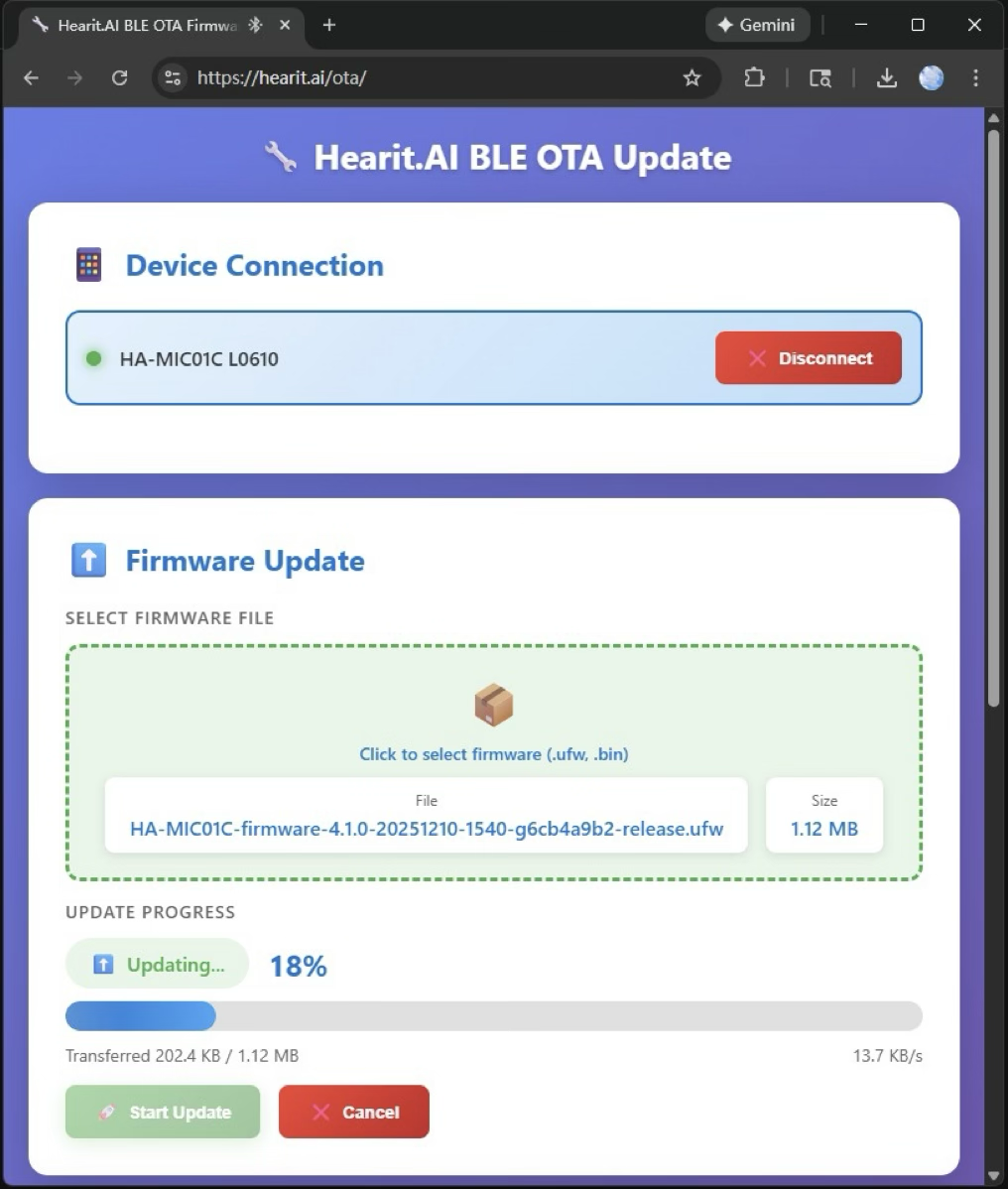
The interface during firmware update showing progress and transfer speed
Step 5: Update Complete
Once the update reaches 100%, the device will automatically restart with the new firmware.
Important Notes
⚠️ During Update:
- Do NOT close the browser tab
- Do NOT disconnect the device
- Ensure device has sufficient battery (>30% recommended)
⚠️ Cancel Limitation:
- Some devices do not support cancelling OTA mid-progress
- If cancel is not available, please wait for the update to complete
Troubleshooting
Device Not Found
- Make sure the device is powered on
- Ensure Bluetooth is enabled on your computer/phone
- Try moving closer to the device
- Refresh the page and try again
Update Failed
- Check device battery level
- Ensure stable Bluetooth connection
- Try the update again with the device closer to your computer
Browser Not Supported
- Use Chrome, Edge, or Opera browser
- Firefox and Safari do not support Web Bluetooth
Contact Support
If you encounter issues not covered in this guide, please contact Hearit.AI support.
- 📧 Email: [email protected]
- 🌐 Website: https://hearit.ai
Document Version: 1.1
Last Updated: December 2025